
VISA PHOTO PREPARATION
Convert a HEIC visa photo to JPEG without changing the face
If your application requires JPEG and your phone saved HEIC, export a separate JPEG copy from the original. Renaming .heic to .jpg does not convert the image. Check the saved copy against the requirements of the actual visa portal.
Conversion is only the first check
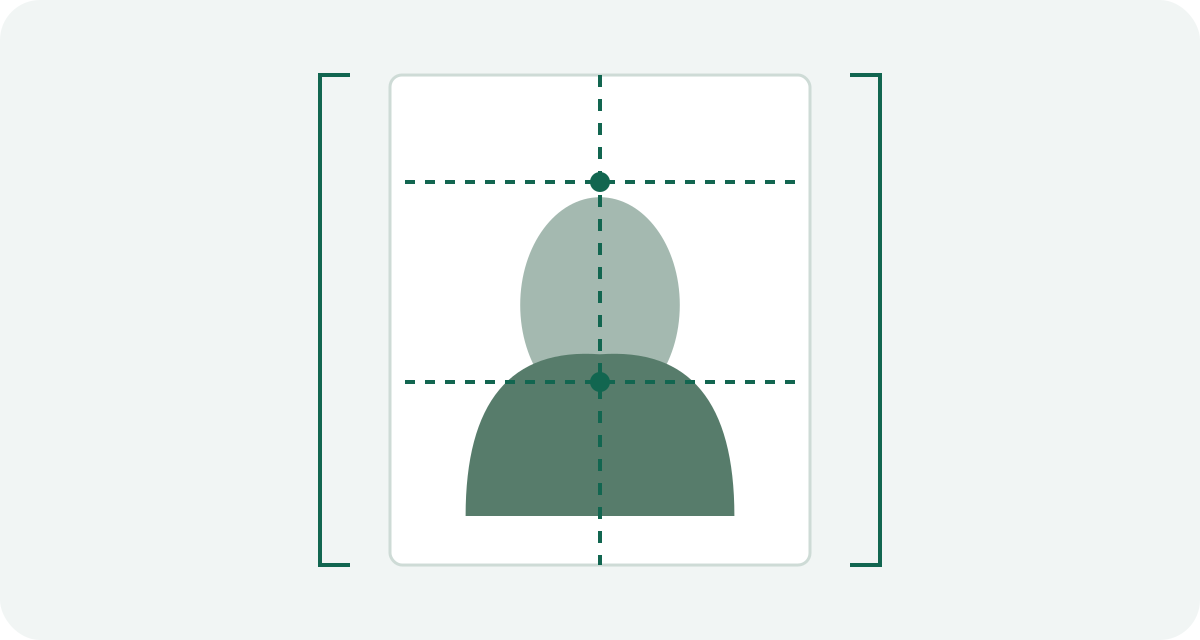
HEIC and JPEG are file formats, not different visa categories. Converting the container does not make a portrait square, recent or correctly framed. It also does not repair a bad background or a blurred face.
Keep the untouched original. Give the exported copy a distinct filename and open it before uploading. Make sure the conversion did not accidentally use a screenshot, a thumbnail or an edited version from the photo library.
One documented route on a Mac
Apple documents opening HEIF images in Photos or Preview and using File > Export to choose JPEG. In a supported Preview installation, select JPEG in the export options and save a new file. Menu wording can vary with the system version.
- Open the original HEIC image in a compatible application.
- Choose an export operation that explicitly offers JPEG.
- Save a separate copy without applying beauty filters or face edits.
- Open the exported file and inspect its properties.
- Only then apply any route-specific crop or file-size preparation that remains necessary.
On another device, use a compatible image application's documented export function. The useful question is whether it creates a real JPEG, not whether it lets you type a different extension.
Sharing does not guarantee the required result
Apple says sharing methods can automatically convert HEIF to a more compatible format. “Can” is not a promise about every transfer. Check the file you actually received, especially when using a cloud download, an email attachment or a messaging app.
A screenshot introduces a different workflow: it captures an on-screen rendering that may include scaling, interface elements or a reduced view. Exporting from the original gives you a clearer record of which image was used.
Inspect four properties before upload
- Actual format: the application identifies it as JPEG.
- Pixel dimensions: width and height match the destination's instructions.
- File bytes: the saved file falls within that route's limits.
- Image content: the face, crop and background still match the original suitable photograph.
For U.S. digital visa photographs, the official page separately specifies JPEG, sRGB, square dimensions and a size cap. Other routes have different requirements. Do not make every converted visa photo a 600-pixel square simply because one application uses that shape.
If conversion still produces an upload error
Read the error and isolate its category. Re-export for a format problem, adjust the final file for a dimension or byte-size problem, and retake for a capture-quality problem. Repeatedly converting the same unsuitable image will not resolve all three.
Keep both files until the application process is complete. They let you distinguish an export mistake from a problem already present in the original.
Official sources and preparation notes
Sources checked October 3, 2026. Prepared by Visa Photo Prep with AI assistance for research and drafting. Calculations and checklists are preparation aids; the receiving authority decides whether a photograph is acceptable. Check the current instructions for your application before submission.
Use the current instructions for your application route; the receiving authority decides whether a photograph is acceptable.
How we distinguish official rules from tool settings · Report a correction